Recording Observations
The izeltlabuak.hu website primarily focuses on arthropods found in Hungary. This entry also deals with Hungarian fauna.
Introduction
On the izeltlabuak.hu platform, as a registered user, you can record arthropod observations. Data recording not only serves to document your personal collection, but also contributes to learning about domestic arthropod fauna and scientific research.
Why is it worth recording data?
Scientific Significance
- Faunistic data: You contribute to better understanding of domestic arthropod fauna
- Distribution data: You help map species distribution and changes
- Temporal trends: Data can be used to infer species occurrence patterns
- Research foundation: Recorded data can be used in scientific publications
Personal Benefits
- Digital collection: All your observations are safely stored
- Organized data: You can review your observations by categories
- Map display: You can view your observations on a map
- Export options: You can download your data in various formats
Community Benefits
- Identification help: Experienced identifiers help identify species
- Knowledge sharing: Other users can learn from your observations
- Event participation: You can participate in various data collection and community events
What is needed for recording?
Observations can be recorded in a browser. You can use a mobile phone, tablet, or desktop computer. Starting from the izeltlabuak.hu site. Any modern browser is supported (Chrome, Firefox, Safari, Edge).
A separate mobile phone application currently does not exist.
User account creation is required for recording observations.
Recording Process
You can initiate new observation recording in several ways as a logged-in user:
- From homepage: Click the 'Record your observation' button on the homepage
- From menu: In the header menu, select observations → New observation menu item
- In mobile view: Open the header menu and select the New observation menu item
- From observation page: Use the 'Record new observation' link
- With current data: Use the 'New observation with current data' link
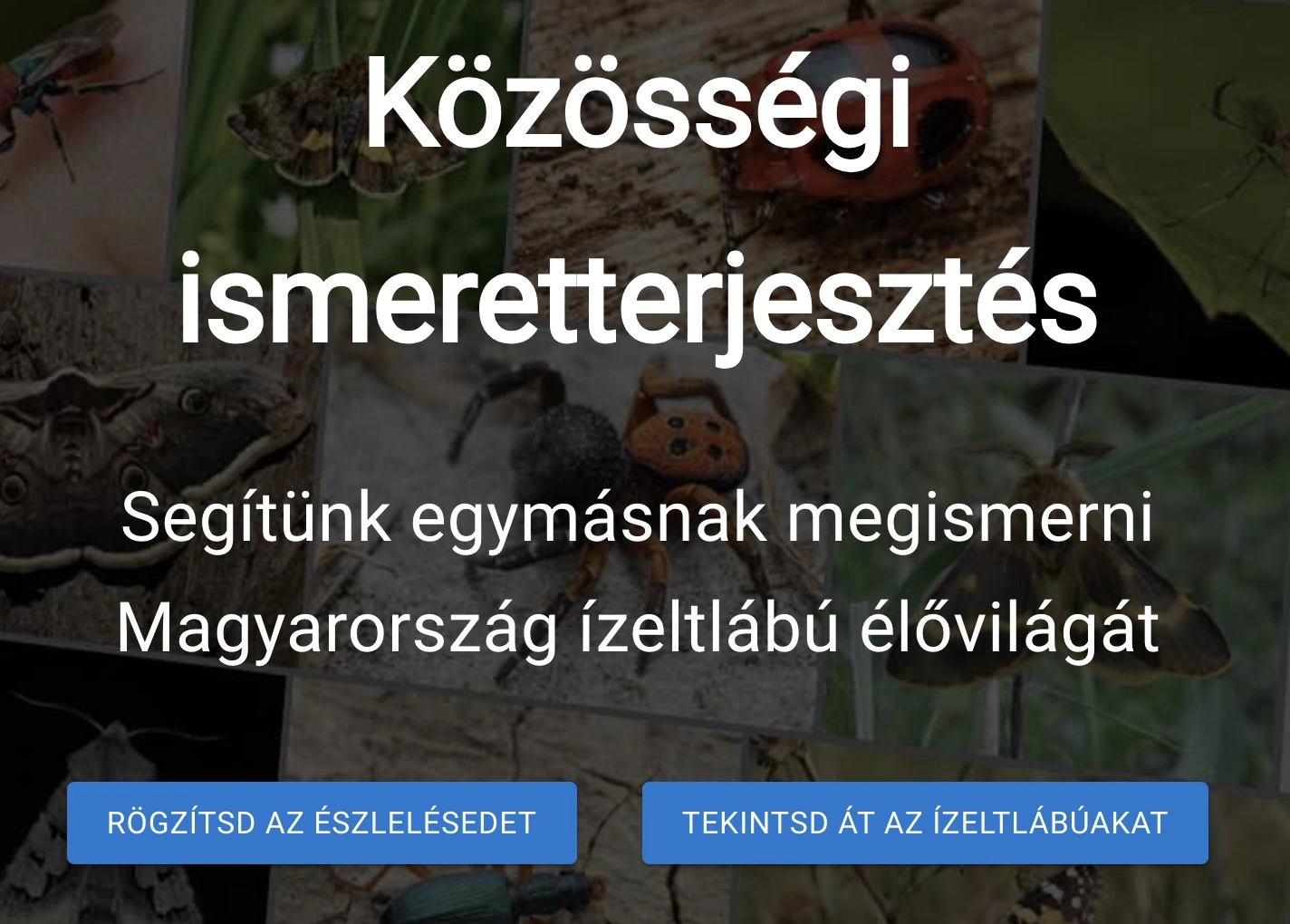 Homepage 'Record your observation' button
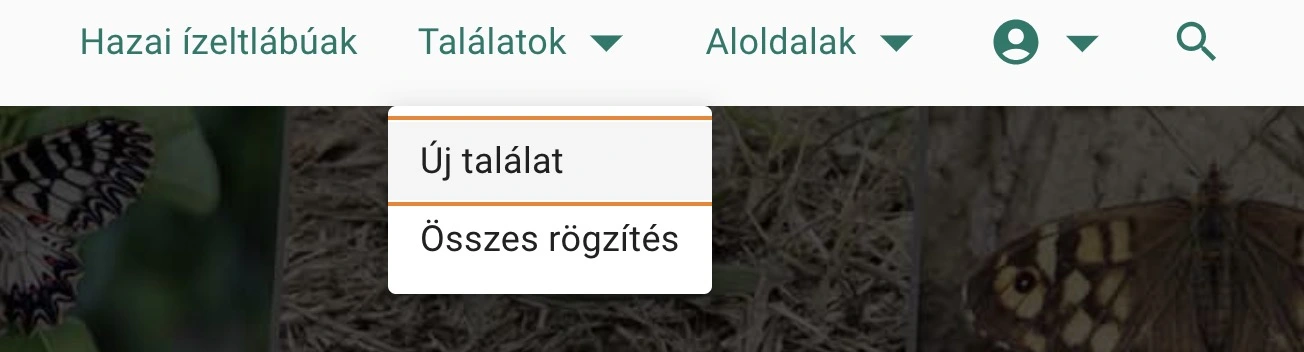 Menu 'New observation' button
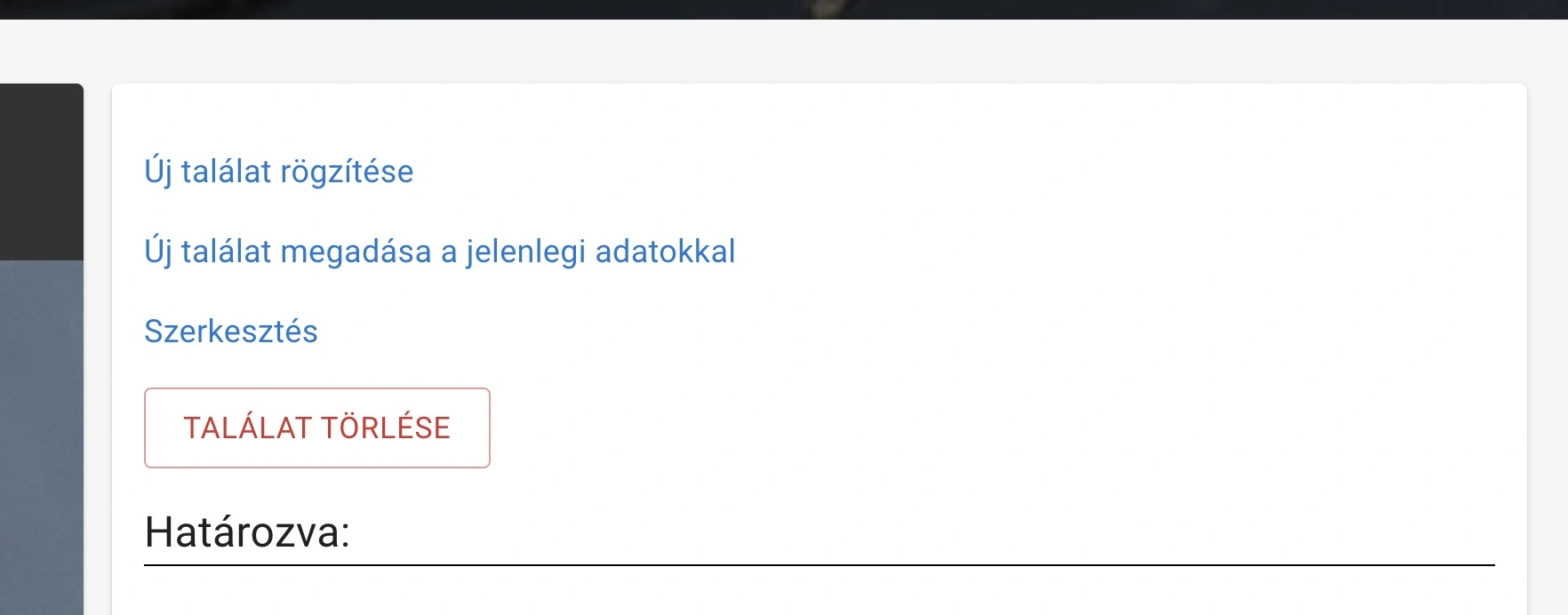 Observation page 'Record new observation' buttons
You reach the observation recording page, where you can provide the observation data.
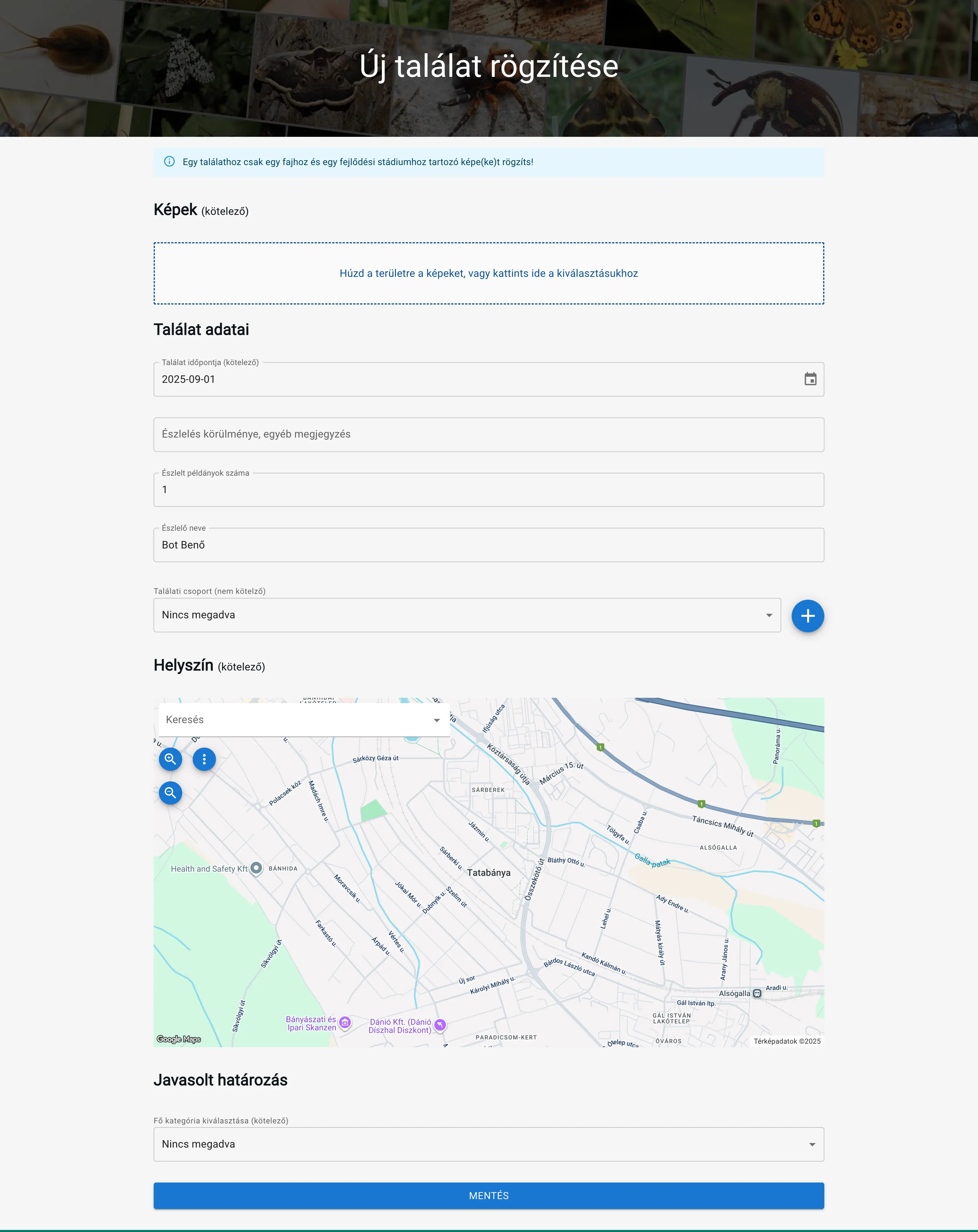 New observation recording page
Important Rules
Record only images belonging to one species and one developmental stage per observation!
If a photo contains multiple species or multiple developmental stages, then record multiple observations. You can edit or crop the images so that only the relevant specimens appear on them. As an alternative solution, you can write in the notes which animal you want identified in the photo.
Example
If you photographed a crab spider that preyed on a butterfly, you can record two separate observations:
- First observation: You request identification for the spider
- Second observation: You request identification for the butterfly
You can select the same image for both observations. At the main category, you choose spiders for one and butterflies for the other.
Why is this rule important?
- We can only assign one taxon and one developmental stage to an observation during identification
- Observations can be sorted by species and developmental stage on the website. This only works well if the observation belongs to one species and one developmental stage
Providing Observation Data
Image Selection
You can record one or more images for an observation.
Image provision is mandatory.
Automatic filling:
- If the image contains the date in EXIF data, the observation date will be automatically filled
- If the image EXIF data contains the location where the image was taken, the observation location will be filled accordingly.
Observation Date
Specify the observation date using the date picker.
Observation Circumstances, Other Notes
You can write any notes about the circumstances or the observation here.
Number of Observed Specimens
Specify the number of observed specimens. For many specimens, you don't need to provide exact data, it's enough to just write 20 or 100, etc.
Observer Name
This will be your name by default, which you can specify in your user account. If several people observed, you can specify multiple names.
Observation Group
You can group your observation into observation groups.
Observation Location
Specify the observation location on the map by clicking on the appropriate location.
Location specification is mandatory.
You can use the search field at the top of the map to search for settlements.
In addition, you can use the built-in zoom out, zoom in and move tools.
Foreign locations can also be specified.
Additional functions are available with the three-dot icon in the top left corner that can help with location specification. These are:
-
Map view switching - possible values: road network, satellite, tourist
-
Search country - shows settlements belonging to the given country during search
-
Select current position - uses the built-in navigation device of the device used to select the current position
-
Specify location in latitude and longitude degree format - Example: 47.51421, 19.07981
-
Specify location in DMS format - Example: 47°30'51.17"N 19°04'47.34"E
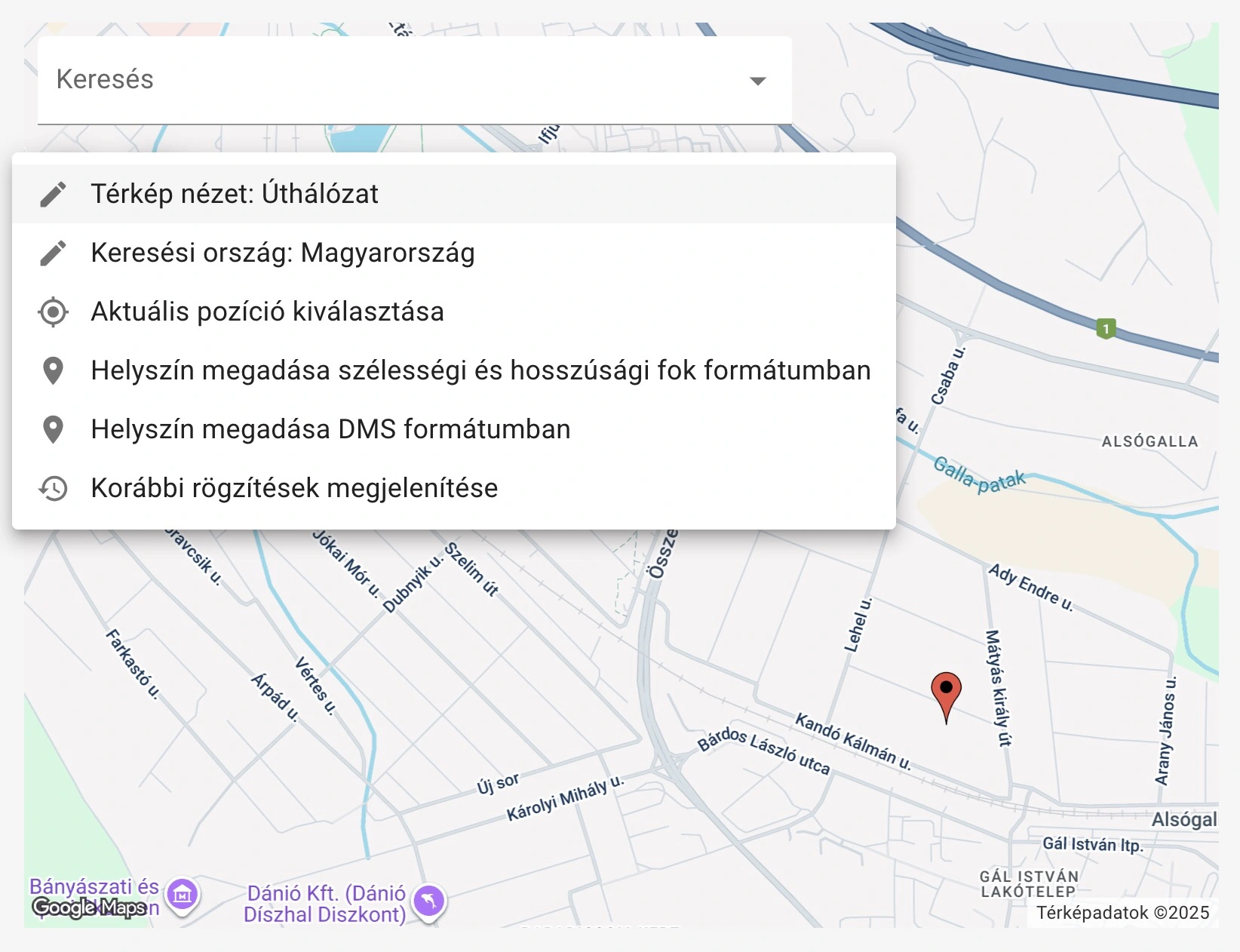
Specifying observation location
Suggested Identification
You can provide a suggested identification for your observation.
The identifiers collaborating with the website will approve the provided data or make a new identification for the observation.
You can read more about identification here.
Main category specification is mandatory. If you cannot specify it, then choose the 'I don't know how to specify' option.
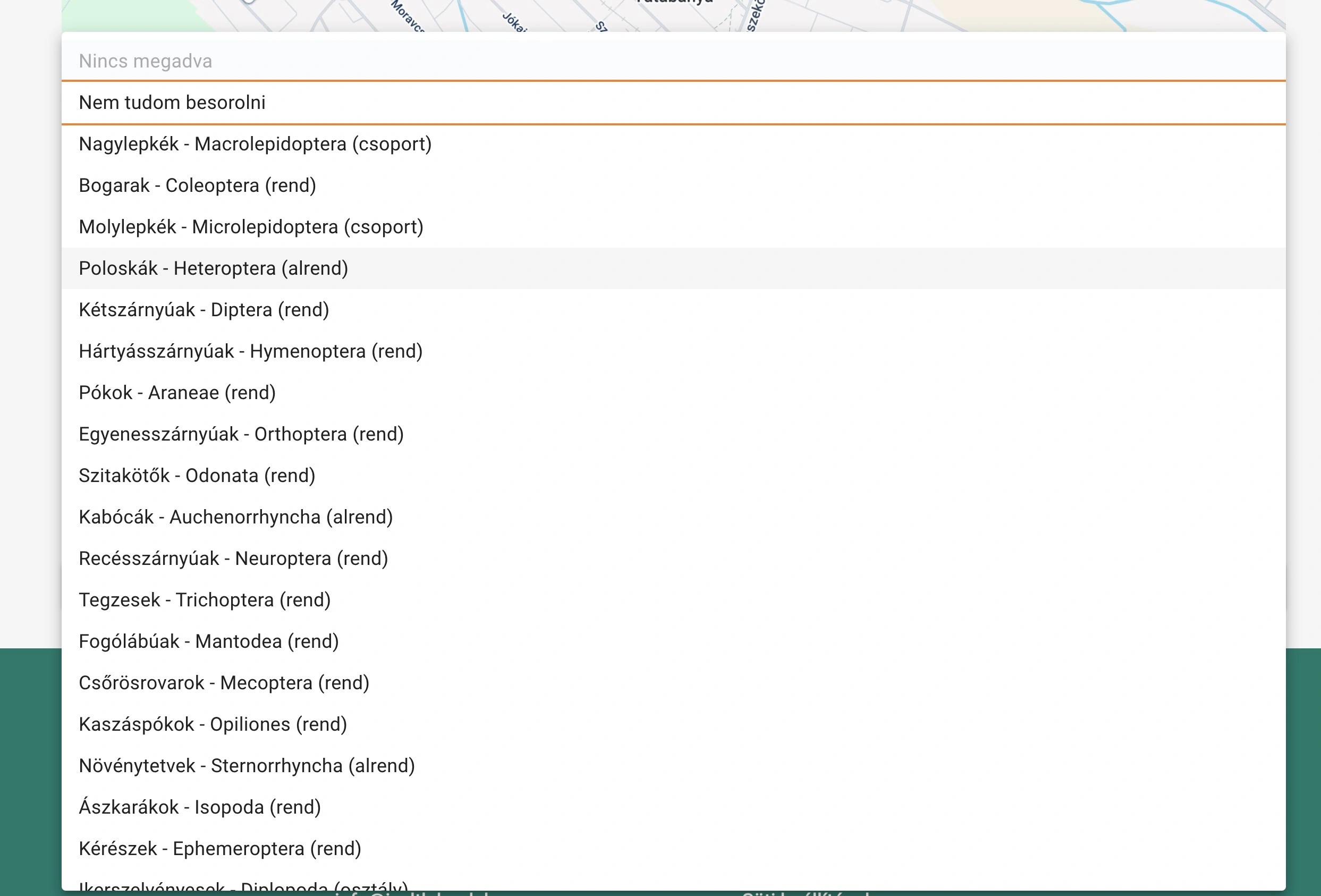 Specifying main category
After specifying the main category, you can specify the taxon at family, genus or species level. By typing the Hungarian or scientific name of the taxon, the possible taxa appear in a selection list.
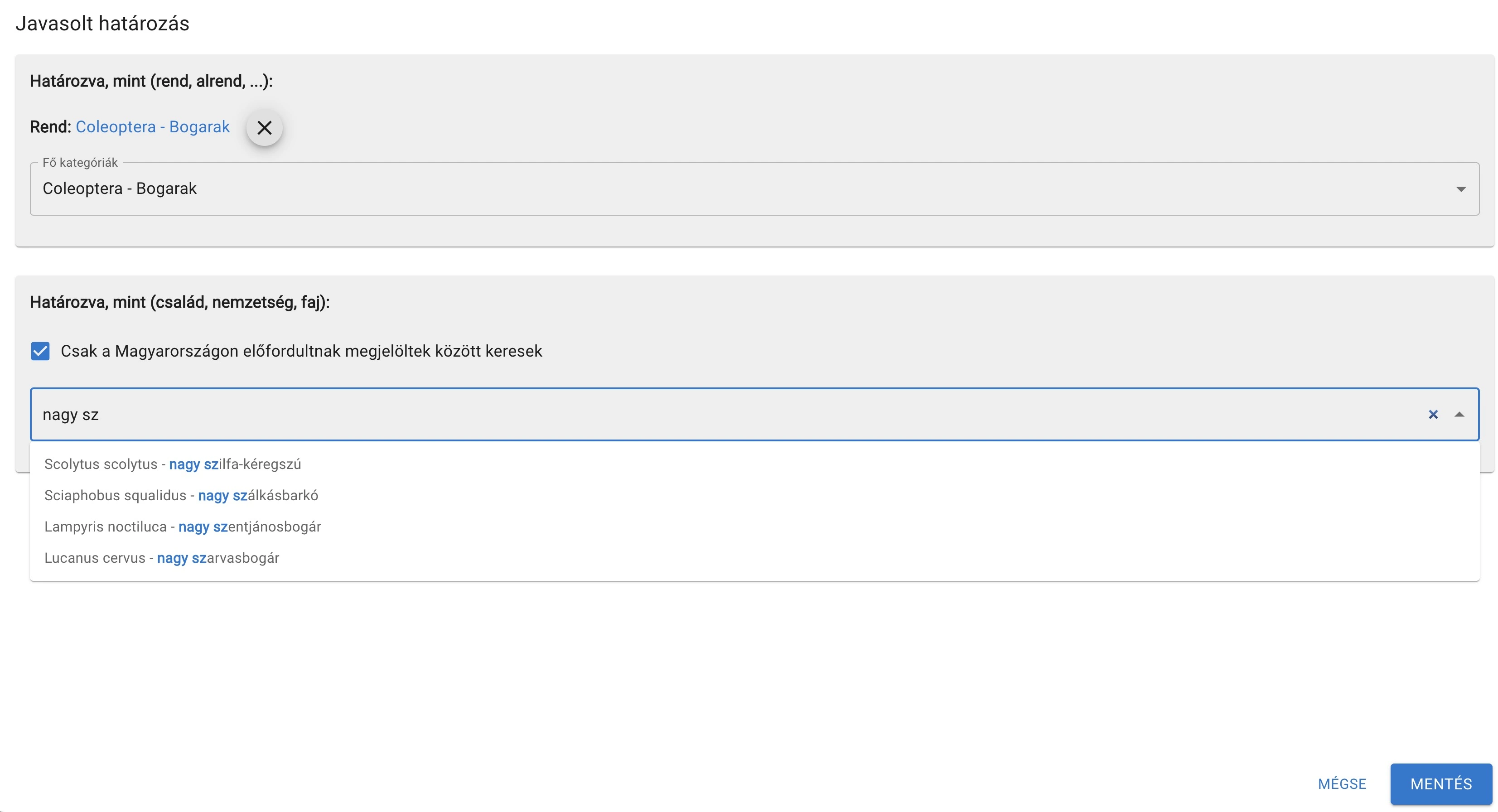 Suggested identification
Accessing Your Already Recorded Observations
After recording, you can review your observations sorted by different criteria.
In addition, based on the identifications given to them, you can also review your observed taxonomic categories.
Editing Observations
Editing, Deletion
You can modify or delete a recorded observation using the 'Edit' link and 'Delete' button on the observation page.
Observation page 'Edit' and 'Delete' buttons
New Observation with Current Data
By using the 'New observation with current data' button, the observation time, location and observer names are automatically filled based on the current observation.